QR codes are everywhere—from restaurant menus to login links. Fortunately, scanning a QR code on modern smartphones is easy, quick, and doesn’t require an extra app in most cases.
Here’s a complete step-by-step guide for iPhone, Android, and alternative methods.
How to Scan a QR Code on iPhone (iOS 15 and above)
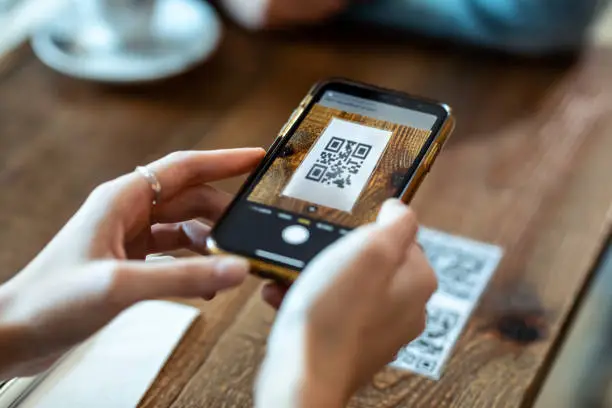
Open your Camera app.
Point your iPhone camera steadily at the QR code.
A notification banner will appear at the top of the screen.
Tap the banner to open the QR link.
✅ No app needed. Built-in camera handles QR codes automatically.
Pro Tip: If it doesn’t work, ensure “Scan QR Codes” is enabled under
Settings → Camera → Scan QR Codes.
How to Scan a QR Code on Android
Open your Camera app (most Androids support QR scanning natively).
Point the camera at the QR code.
Tap the notification pop-up to open the link.
📌 On older Android phones, use Google Lens:
Long press the Home button → Tap Google Lens → Point at the QR code.
How to Scan a QR Code Without Camera App
Option 1: Use Google Lens App (Android/iPhone)
Option 2: Use Control Center on iPhone
Add QR Code Scanner via:
Settings → Control Center → Add “Code Scanner”
Option 2: Use Third-Party QR Apps (if necessary):
🚫 What If QR Code Won’t Scan?
Clean your camera lens
Increase brightness
Avoid shaking
Try another device
Make sure it’s a valid QR code (damaged or blurry codes may fail)
FAQ
Q1: Do I need an app to scan a QR code on iPhone?
No. iPhones with iOS 11 and above have built-in QR scanning via the Camera app.
Q2: Where is the QR scanner on my iPhone?
It’s integrated into the Camera app or accessible from Control Center as “Code Scanner.”
Q3: Can I scan a QR code from an image or screenshot?
Yes. Use Google Photos (Android) or Google Lens/iOS Shortcuts to scan from saved images.
Q4: Why is my QR code not scanning?
Check lighting, clarity, camera focus, or try cleaning the lens.
Q5: Are QR codes safe to scan?
Only scan from trusted sources. Avoid suspicious codes in public places without context.